Sync Granola meeting notes
Connecting Granola syncs your meeting notes into Falconer, making them searchable alongside your docs, code, and conversations. Falcon can reference meeting context when answering questions, writing docs, or surfacing decisions.
Prerequisites
Section titled “Prerequisites”- A Granola account with existing meeting notes
- Owner or admin access to your Falconer organization
Generate a Granola API key
Section titled “Generate a Granola API key”- Open the Granola app.
- Click Settings (top right).
- Go to Connectors → API keys.
- Click Create new key.
- Select the Personal scope (add Public if you want team-shared notes).
- Click Generate API key and copy it.
Connect Granola to Falconer
Section titled “Connect Granola to Falconer”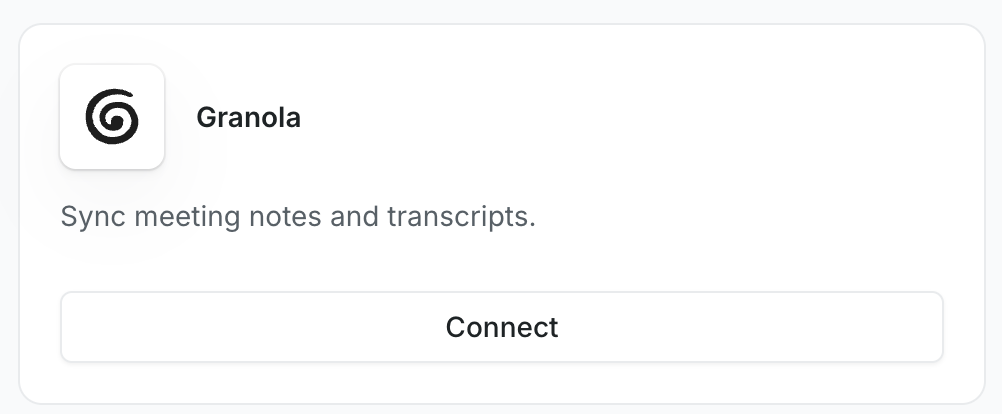
- Navigate to Integrations from the bottom-left menu in Falconer.
- Find Granola and click Connect.
- Paste your Granola API key and click Connect.
- Falconer begins syncing your meetings immediately.
Note: Falconer connects one Granola account per user in your organization. It gets access to all meetings belonging to the authenticated user.
What gets synced
Section titled “What gets synced”Each meeting is ingested as a structured document containing:
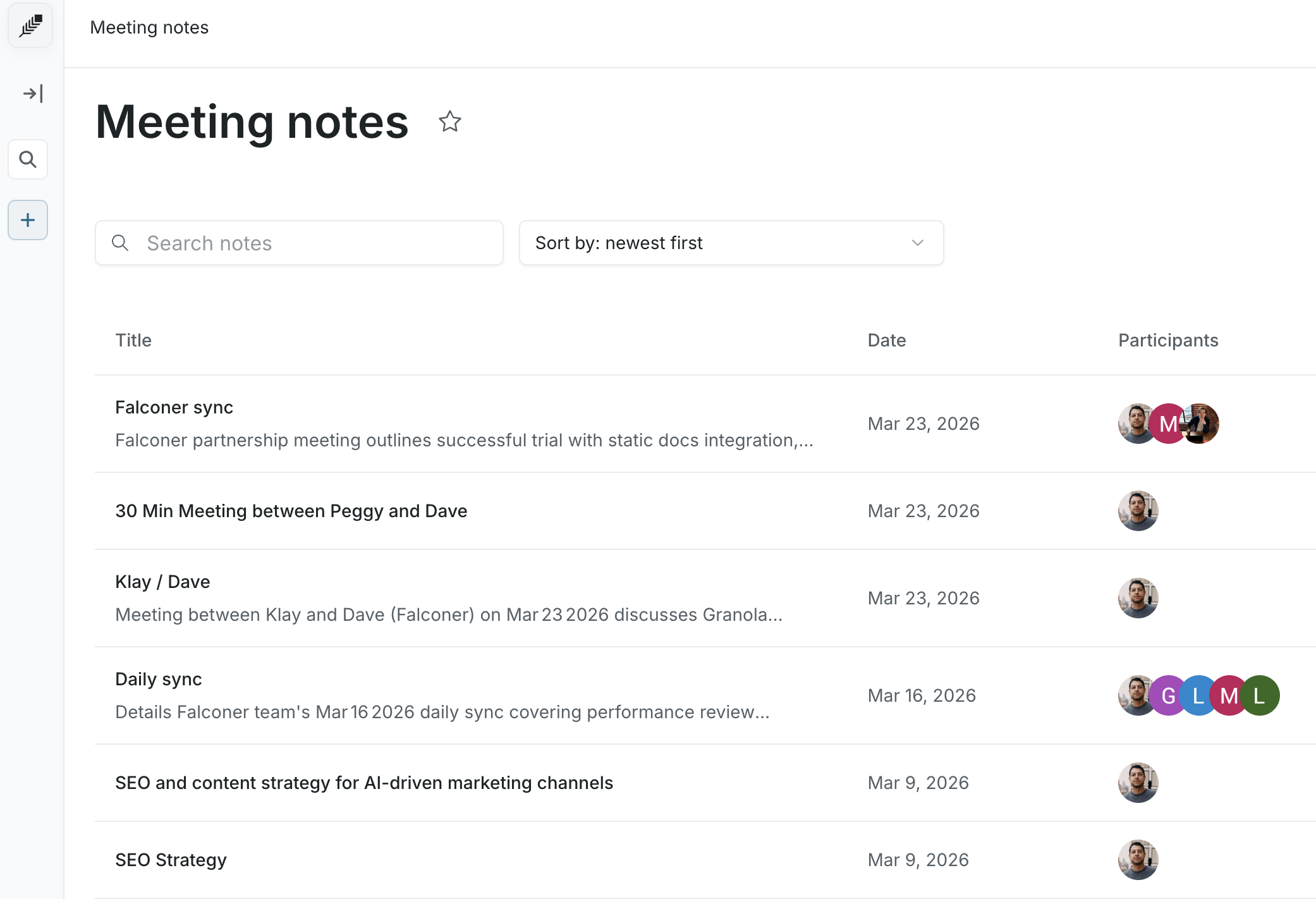
- Meeting title and date
- Attendee names and email addresses
- Meeting summary and notes
Meetings are organized into date-based folders under a Meeting notes section in your personal navigation.
After connecting
Section titled “After connecting”Once synced, your Granola meeting notes are indexed alongside your other sources. From there you can:
- Ask questions — Falcon answers questions using your meeting content, with citations back to the source note
- Write docs — reference meeting context when prompting Falcon to write or update documentation
- Surface decisions — ask Falcon what was decided in a meeting, who owns an action item, or what was discussed on a given topic